![SimplyBread_Logo_BrightEmber (1).png]](https://9033700.hs-sites.com/hs-fs/hubfs/SimplyBread_Logo_BrightEmber%20(1).png?width=180&height=108&name=SimplyBread_Logo_BrightEmber%20(1).png)
If you need to update the bank account where you receive payouts, you can do this through the Stripe portal inside the Simply Bread App.
Stripe makes this option a little difficult to find, but the steps below will take you to the right place.
Step 1: Open Your Payout Settings
-
In the Simply Bread App, go to the Payouts page located in the More tab.
-
Under your current bank account, click the three dots icon on the right.
-
Select Change bank account.
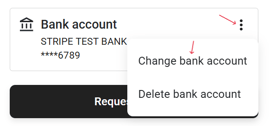
This will open the Stripe portal.
Step 2: Log Into Stripe
Stripe will send a 6-digit verification code to your phone by text message.
Enter that code to continue.
Step 3: Find Your Bank Account Details
Once you are logged into Stripe:
-
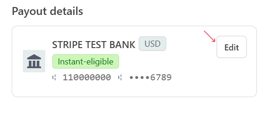
Scroll down until you see the Payout details section.
-
Click the Edit button on the right side of that section.
Step 4: Link a New Bank Account
After clicking Edit, you will be taken to a page where Stripe shows your current payout account.
Near the bottom of the page (just above the Save button), you will see a sentence with clickable text.
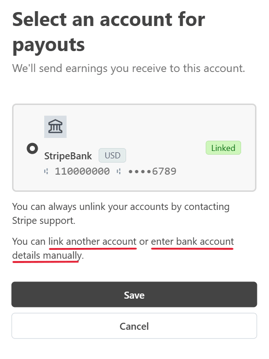
Click either option:
-
Link another account (to connect through Stripe’s bank linking flow), or
-
Enter bank account details manually (to type in routing and account numbers)
Both options will allow you to add a new bank account for payouts.
Step 5: Save Your Changes
Once you’ve entered or linked the new account, click Save to confirm the update.
Questions?
If you have any questions or need help getting set up, reach out to us at support@simply-bread.co or call or text 760-452-3607. We’re happy to help.